If an interesting channel that you don't yet follow appears in a conversation on your timeline, you can easily follow it by right-clicking on the avatar.
New Hubzilla channels can also be found via /directory, where you can search specifically for names and keywords associated with a channel. However, you won't find non-Hubzilla Fedi channels here...
If, for example, you find interesting channels in conversations or follower lists on the various Mastodon servers, you can copy the channel address to the clipboard and paste it into the form at /connections and using the Add button to add it as a contact.
Of course, it would be nicer if this could be done with just two clicks, and I have now found a solution for exactly this.
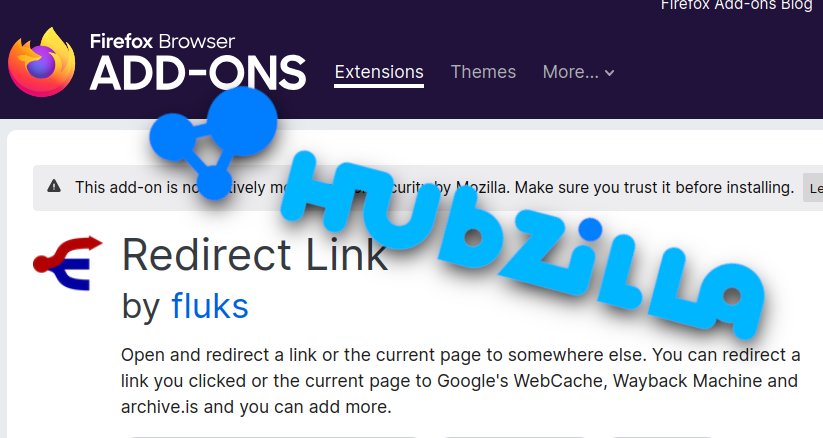
I use the browser add-on “Redirect-link”
#^https://github.com/fluks/redirect-link
Once installed, an “Redirect-link” entry is created in the browser's context menu and a “Redirect-link” button is available for the browser toolbar.
In the add-on settings, add the following URL.
https://YOUR-HUB-DOMAIN.TLD/follow?f=&interactive=1&url=%u
(Replace YOUR-HUB-DOMAIN.TLD with the domain of your hub.)
and give it a title like "Add Follower".
If you now discover the channel address of an interesting channel that you would like to follow in a conversation in a foreign timeline or in a follower list of a foreign channel, simply right-click on this address and then select the URL we created in the “Redirect-link” add-on in the context menu that opens. The add-on opens the link we have formatted and replaces the placeholder %u with the channel address. All we need to do is confirm the addition of the channel in the newly opened browser window and select the channel role and privacy group beforehand...
This makes adding external channels much easier.
This HowTo video shows you how it works:
Unlike in the Hubzilla Grid, in the AP world, every Fedi channel can initially liked and commented on every post without restriction – and there is also no handy OWA here that recognizes identities and comment rights on external servers.
The “Redirect-link” add-on can now also be used here to load a conversation from a channel you don't yet follow into your own timeline so that you can comment or like it.
To do this, add the following URL to the settings of the “Redirect-link” add-on.
https://YOUR-HUB-DOMAIN.TLD/network?f=&search=%u&submit
Again, replace YOUR-HUB-DOMAIN.TLD with the domain of your hub and give it a titel.
Now if you discover a post in someone else's timeline that you would like to like or comment on, simply right-click on the URL of the post and click on the link that appears in the context menu to load the search function of your own HZ channel with the URL of the post in the “Redirect link” add-on.
The placeholder %u in the URL is replaced with the channel address.
Our channel searches for the URL of the post, and finally the external post is called up in our channel, allowing us to like and comment on it.
HowTo video:
The two URLs can also be imported into the add-on using the following file.
redirect-link_settings-for-hubzilla.json